

How to connect Ford SYNC starts with knowing which phone connection your Ford supports. Additionally, Bluetooth handles calls and audio without placing phone apps on the touchscreen. By contrast, Apple CarPlay brings supported iPhone apps onto the Ford display. Android Auto does the same for supported Android apps.
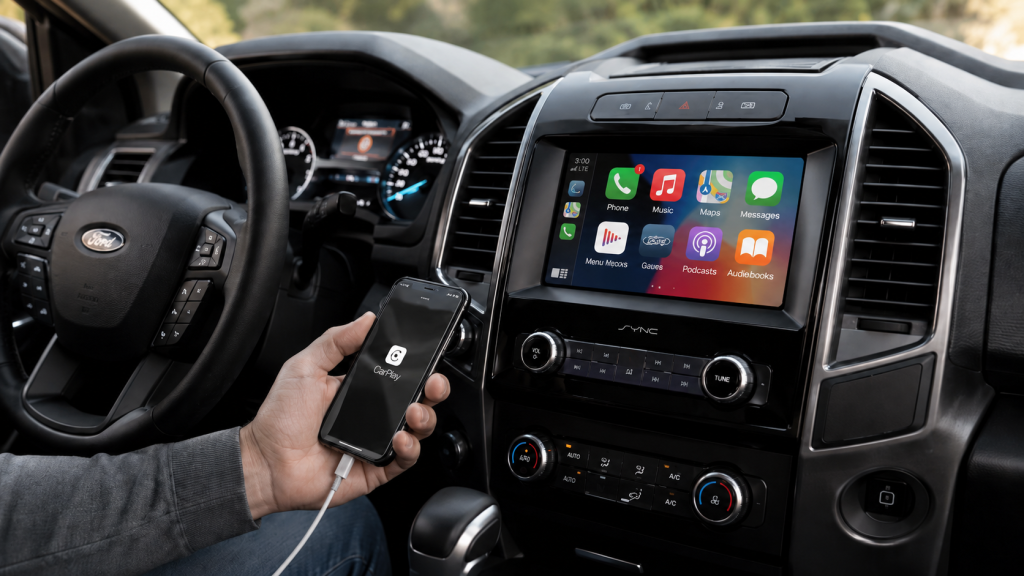
Therefore, the first step is choosing the correct connection. Furthermore, your Ford may use SYNC 3, SYNC 4, or SYNC 4A. Therefore, each version uses different menus and phone pairing steps. Newer versions may support wireless phone projection. SYNC 3 usually uses a USB cable for Apple CarPlay or Android Auto.
This walkthrough explains each path in clear order. It also covers music, maps, calls, messages, and common connection trouble. Murfreesboro owners can use these steps before contacting the dealership for added support.
Which Ford Phone Connection Should You Choose?
Bluetooth pairing links your phone with the Ford screen for calls and audio. It does not always open Apple CarPlay or Android Auto. Those phone projection tools require separate setup steps.
So, do you need Bluetooth, Apple CarPlay, or Android Auto? Start with the task you want to complete. Bluetooth works well for calls and streamed music. Apple CarPlay brings supported iPhone apps onto the Ford display. Android Auto brings supported Android apps onto that display.
In addition, phone projection gives you access to supported maps, messages, podcasts, and voice controls. It may use a cable or wireless connection. Your Ford screen and phone model control which path appears.
Before starting, place the vehicle in Park. Turn on the Ford screen and unlock your phone. Then, switch on Bluetooth. For wireless projection, also switch on Wi Fi.
Still, basic Bluetooth pairing may be enough for some owners. It gives access to calls and audio without opening a new screen layout. Phone projection offers a fuller app view through the Ford display.
Find Your Ford SYNC Version
Your SYNC version controls the menu names and connection path. Therefore, finding the version first prevents wasted steps.
SYNC 3 uses a wide touchscreen with a lower menu bar. The menu usually includes Audio, Phone, Navigation, Apps, and Settings. Apple CarPlay and Android Auto usually start through a USB cable.
SYNC 4 and SYNC 4A use newer screen layouts. These versions may support wireless Apple CarPlay and Android Auto. Some vehicles also support wired connections through a USB port.
You can check the Settings menu for a SYNC information screen. Additionally, the vehicle owner manual may name the installed version. In addition, Ford support resources can match instructions with your model and model year.
Why does the version matter? A SYNC 3 owner may search for a wireless menu that never appears. A SYNC 4 owner may connect without keeping the phone plugged in. Clear version matching keeps the process simple.
Connect an iPhone Through Apple CarPlay
Apple CarPlay places supported iPhone apps on the Ford touchscreen. It supports maps, calls, messages, music, podcasts, and Siri voice control.
First, make sure Siri is active on the iPhone. Then, unlock the phone before beginning. Use an Apple approved cable for wired setup. Connect the cable directly to the vehicle USB port.
Next, watch the Ford screen for an Apple CarPlay prompt. Accept the terms on both screens. The CarPlay layout should then replace the standard phone screen.
For wireless setup, start with Bluetooth and Wi Fi turned on. Open the Ford phone menu and add a new device. Select the vehicle name on the iPhone. Confirm the matching code on both screens.
After Bluetooth pairing, the Ford screen may ask about wireless Apple CarPlay. Accept that prompt to open the CarPlay layout. The iPhone may also request access to contacts, messages, or notifications.
What should you check when CarPlay does not open? Start with the USB cable and port. Then, confirm Siri, Bluetooth, Wi Fi, and CarPlay permissions. Also check whether another saved phone connects first.
Once connected, open Maps, Phone, Messages, Music, or Podcasts from the Ford screen. Siri can handle many tasks through voice commands. Keep attention on the road and use voice control when possible.
Connect an Android Phone Through Android Auto
Android Auto places supported Android apps on the Ford touchscreen. It supports navigation, calls, messages, music, podcasts, and Google Assistant.
Start by unlocking the phone. Turn on Bluetooth. For wired setup, connect a reliable USB cable to the correct vehicle port. A charging only cable may not transfer app data.
Then, accept the prompts on the phone and Ford screen. The phone may request access to contacts, messages, location, and notifications. Those permissions support calling, messaging, maps, and voice commands.
For wireless setup, keep Bluetooth and Wi Fi turned on. Add the phone through the Ford phone menu. Confirm the matching code. Then, approve the Android Auto prompt on both screens.
Android Auto may open without a separate app icon on newer phones. The feature is part of the phone software on many Android versions. Therefore, use phone settings to review permissions and connection history.
If Android Auto stays hidden, disconnect the cable and restart both devices. Then, test another data cable. Also remove old vehicle records from the phone. Remove old phone records from the Ford screen as well.
After connection, open Google Maps, Phone, Messages, or supported audio apps. Google Assistant can handle many requests through voice commands. Keep the phone stored securely while driving.
Why Will Your Phone Not Connect to Ford SYNC?
Connection trouble means one part of the pairing path is blocked. The cause may involve settings, permissions, cables, saved devices, or software.
Begin with the simplest checks. Make sure the phone is unlocked. Confirm Bluetooth is on. Wireless projection also needs Wi Fi. Wired projection needs a data cable and working USB port.
Use this order before resetting the Ford screen:
- Confirm the phone has current software, then restart the phone and vehicle.
- Test another data cable and another supported USB port.
- Delete saved pairings on both devices, then complete a fresh connection.
Furthermore, check whether another phone connects first. Ford screens may favor a saved primary phone. Turn off Bluetooth on that device during testing.
If music works but CarPlay does not, basic Bluetooth pairing is active. The projection setup still needs approval. Review CarPlay settings on the iPhone and phone list on the Ford screen.
If calls work but Android Auto does not, review USB data access and phone permissions. Also check for a damaged cable. A cable can charge the phone while failing to transfer app data.
When the connection drops during a drive, move the phone away from loose cables or blocked storage areas. Then, review battery saving settings. Some phone settings may stop wireless projection after the screen locks.
Use Music, Maps, Calls, and Messages After Pairing
A completed connection should support the phone tasks you selected during setup. Still, each task may require separate permission.
For music, choose Bluetooth Audio, Apple CarPlay, or Android Auto from the Ford audio menu. Open the preferred audio app. Then, use the touchscreen, steering wheel controls, or voice control.
For maps, open Apple Maps, Google Maps, or another supported navigation app. Enter the destination before driving when possible. Voice control can handle route changes without reaching for the phone.
For calls, allow contact access during pairing. That permission lets the Ford screen show names and recent calls. Voice control can place a call through Siri or Google Assistant.
For messages, approve notification and message access on the phone. The Ford screen may read supported messages aloud. Voice control can prepare a reply for review.
In addition, check these permissions after a phone update. Updates may change privacy settings or remove prior approval. Reconnect the phone after reviewing those settings.
Ford technology should make common tasks easier to reach. A clear setup order keeps phone pairing from becoming frustrating. Reddick Brown Ford can also assist Murfreesboro owners with model specific connection questions.
Connect with us


Recent Blog Entries
- How to Connect Ford SYNC: Apple CarPlay Setup Guide
- Ford SUV for Daily Driving: Matching Rugged to Real Life
- Ford Trucks for Drivers Who Like VelociRaptor, Shelby, and Baja-Style Capability
- Ford Truck vs SUV: Which Fits Your Lifestyle?
- Best Ford SUVs for Growing Families Space Safety and Everyday Usability