

In today’s connected world, seamlessly integrating your smartphone with your vehicle is no longer a luxury—it’s a necessity. For Ford owners, the Sync system offers a powerful way to stay connected on the road. Let’s dive into the world of Ford Sync, exploring how to connect your phone, the differences between Sync versions, and everything you need to know to make the most of this innovative technology.
Understanding Ford Sync: From 1 to 4
Ford Sync has evolved significantly over the years, with each version bringing new features and improvements. Let’s take a brief look at the history of Ford Sync:
Sync 1 (2007)
The original Sync system introduced basic voice commands and Bluetooth connectivity for phones and media players.
Sync 2 (2011)
Also known as MyFord Touch, this version brought a touchscreen interface and improved voice recognition.
Sync 3 (2015)
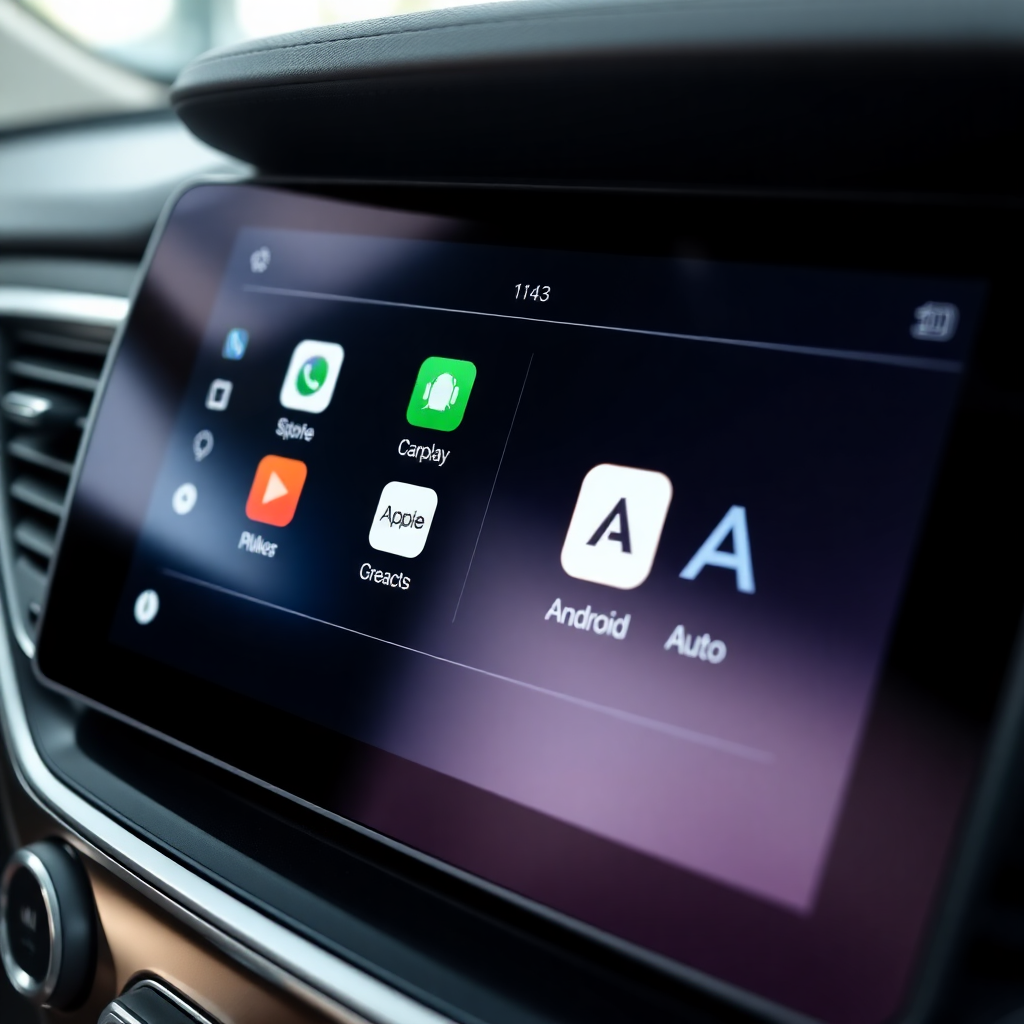
A significant upgrade with a more responsive touchscreen, improved voice recognition, and support for Apple CarPlay and Android Auto.
Sync 4 (2020)
The latest version offers larger screens, wireless Apple CarPlay and Android Auto, enhanced voice recognition, and over-the-air updates.
What Does Ford Sync Do?
Ford Sync is an in-vehicle communications and entertainment system that offers a wide range of features:
- Phone Integration: Make hands-free calls and access your contacts.
- Music Streaming: Play music from your phone or connected devices.
- Navigation: Access maps and turn-by-turn directions (on equipped models).
- Voice Commands: Control various functions using voice commands.
- App Integration: Use compatible smartphone apps through the Sync interface.
- Vehicle Health Reports: Get updates on your vehicle’s maintenance needs.
- Emergency Assistance: Automatically call emergency services in the event of a crash (where available).
How to Check Your Ford Sync Version
To check which version of Ford Sync you have:
- Turn on your vehicle and the Sync system.
- On the main screen, look for a “Settings” or “Menu” option.
- Navigate to “System” or “General.”
- Look for “About” or “System Information.”
- Here, you should find the Sync version number.
Alternatively, you can check your vehicle’s manual or contact your local Ford dealer with your Vehicle Identification Number (VIN).
Can You Update Ford Sync for Free?
Yes, Ford typically offers Sync updates for free. The update process varies depending on your Sync version:
- Sync 1 and 2: Updates are usually done via USB drive. You can download the update from Ford’s website and install it yourself.
- Sync 3: Some updates can be done via USB, while others may require a visit to the dealer.
- Sync 4: Offers over-the-air updates, making the process much simpler. Your vehicle can download and install updates automatically when connected to Wi-Fi.
To check for available updates, visit the Ford Owner website and enter your VIN. Ford will provide instructions for any available updates.
Connecting Your Phone: iPhone vs. Android
Whether you’re an iPhone user or an Android enthusiast, Ford Sync has you covered. However, the connection process and available features can vary slightly between platforms.
Connecting an iPhone to Ford Sync
- Ensure your iPhone is running the latest iOS version.
- Connect your iPhone to the USB port in your Ford using an Apple-certified cable.
- The first time you connect, you may need to enable CarPlay on your phone.
- Follow the prompts on your vehicle’s touchscreen to complete the setup.
For Sync 4 users with wireless CarPlay:
- Enable Bluetooth and Wi-Fi on your iPhone.
- Go to your vehicle’s settings and select “Add Phone.”
- Follow the on-screen instructions to pair your device wirelessly.
Connecting an Android Phone to Ford Sync
- Make sure your Android phone is running Android 5.0 (Lollipop) or higher.
- Download the Android Auto app from the Google Play Store if it’s not pre-installed.
- Connect your Android phone to the USB port using a high-quality USB cable.
- Follow the prompts on both your phone and the vehicle’s touchscreen to complete the setup.
For Sync 4 users with wireless Android Auto:
- Ensure your phone supports wireless Android Auto.
- Enable Bluetooth and Wi-Fi on your Android device.
- In your vehicle’s settings, select “Add Phone” and follow the on-screen instructions.
Making the Most of Ford Sync
Once connected, you can enjoy a range of features designed to enhance your driving experience:
- Navigation: Access your preferred mapping app directly on your vehicle’s display.
- Music Streaming: Enjoy your favorite tunes from apps like Spotify, Apple Music, or Google Play Music.
- Voice Commands: Use Siri or Google Assistant to control various functions hands-free.
- Messaging: Have your texts read aloud and dictate responses safely while driving.
- Phone Calls: Make and receive calls through your vehicle’s audio system.
Troubleshooting Common Issues
While Ford Sync is generally reliable, you might encounter occasional hiccups. Here are some quick fixes:
- Connection Problems: Ensure you’re using a high-quality, certified cable. Try restarting both your phone and the Sync system.
- App Compatibility: Keep your phone’s operating system and apps up to date.
- Voice Recognition Issues: Speak clearly and try rephrasing your command if not recognized.
- System Updates: Regularly check for and install Sync updates to ensure optimal performance.
The Future of Ford Sync
Ford continues to innovate with its Sync technology. Recent updates have focused on improving connectivity and addressing user concerns. For instance, a major Sync 4 update in early 2025 aimed to fix phone connectivity issues, particularly with Android Auto and Apple CarPlay.
As vehicle technology advances, we can expect even more integration between our smartphones and cars. Ford is likely to continue enhancing features like voice commands, navigation pre-conditioning for electric vehicles, and seamless app integration.
Staying Connected on the Road
Whether you’re an iPhone aficionado or an Android enthusiast, Ford Sync offers a robust platform to keep you connected while driving. By understanding how to connect your device and utilize the system’s features, you can enhance your driving experience, stay safe on the road, and make the most of your Ford vehicle’s technology.
Remember, the key to a smooth Sync experience is keeping both your phone and your vehicle’s software up to date. With the right setup and a little know-how, you’ll be navigating, communicating, and enjoying your favorite media with ease—all while keeping your hands on the wheel and your eyes on the road.
Connect with us


Recent Blog Entries
- Ford SUV for Daily Driving: Matching Rugged to Real Life
- Ford Trucks for Drivers Who Like VelociRaptor, Shelby, and Baja-Style Capability
- Ford Truck vs SUV: Which Fits Your Lifestyle?
- Best Ford SUVs for Growing Families Space Safety and Everyday Usability
- Why Ford Trucks Are the Most Trusted in Tennessee